
What matters most in a short video? The hook in the first 3 seconds.
But this time we're not just writing a hook — we're turning it into part of the shot: crumpling a comment into a paper ball and tossing it, setting a question sticker on fire, even spraying a notification and wiping it away.
Turning social UI into "real objects" you can interact with makes a great opener for Reels, Threads, Instagram tutorials or product promos.
We built everything directly in (https://chat.jif.dev/canvas) — no complicated post-production needed. Canvas lets you wire your character, scene and UI references into a single video generation node, so the character and set stay consistent while you generate the full animation in one go.
Open (https://chat.jif.dev/canvas) and prepare 3 assets
Get these ready first:
Image 1: Room background
Image 2: Character sheet
Image 3: Social media UI screenshot
If you want all three videos to feel like one story, don't regenerate the character or the room for each clip — reuse the same set of references every time.
Prepare the room background
The room doesn't need to be fancy. Any bedroom photo you like will do.
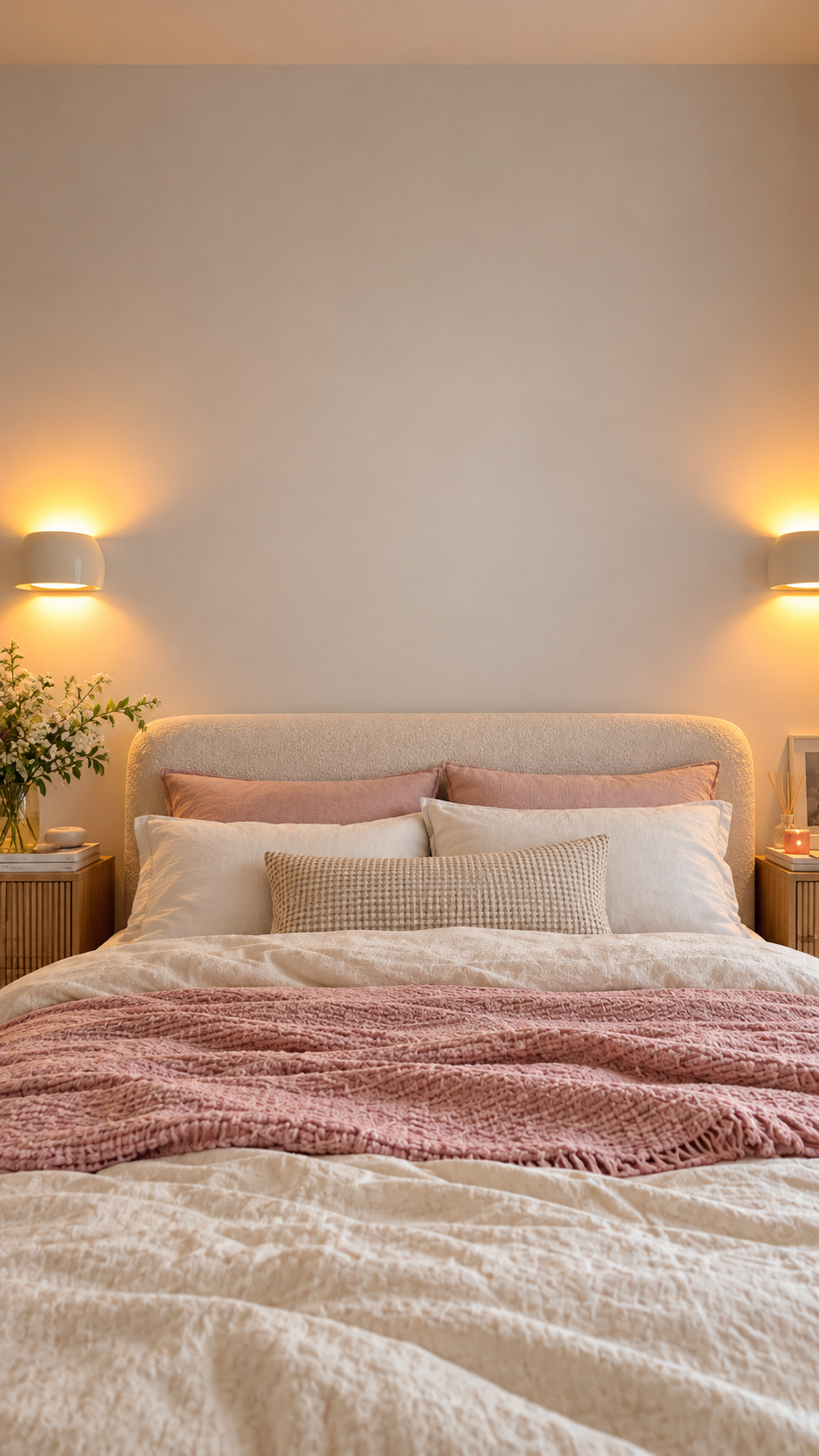
A few things really matter, though:
- Shoot the bed straight on
- Keep the bed in the center of the frame
- The character will sit in the middle of the bed later
- Leave a large, clean, empty wall above the headboard
- No paintings, mirrors, TVs or busy decor
- Wall lamps on either side add nice depth
- Use 9:16
- Keep the lighting natural and soft
- The UI will float above the character's head, so keep the wall plain
You can upload your own bedroom reference to Canvas as-is — no need to generate a new one.
If you'd rather generate it with AI, just keep this direction in mind:
Prepare the character sheet
If you want the same person in all three effects, start with a Character Sheet.
The simplest version is:
Full-body front + full-body back + face close-up
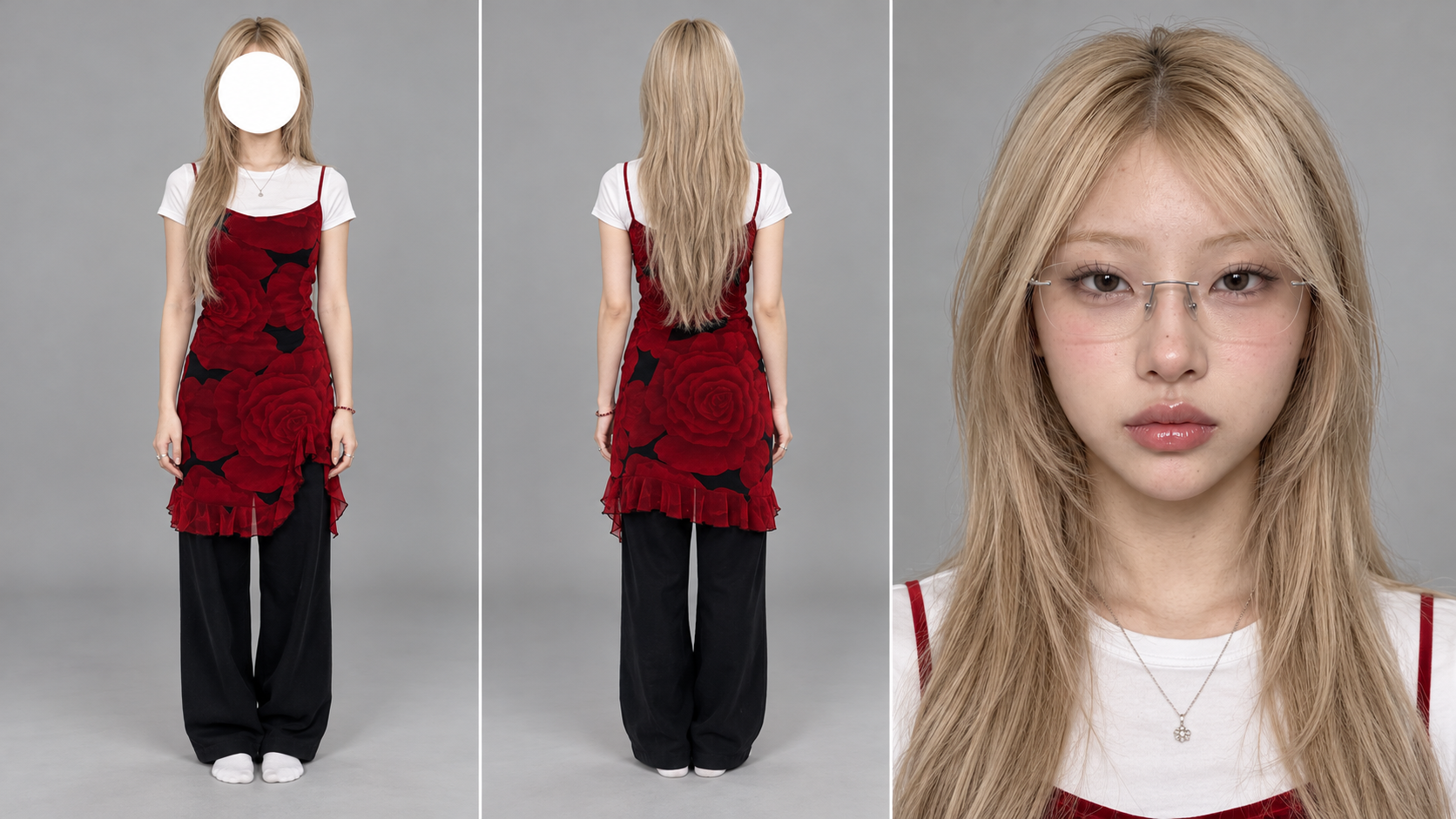
All in a single image.
This keeps the face, hairstyle and outfit far more consistent across generations.
If you already have a character reference, drop it straight into Canvas — no need to regenerate.
Screenshot 3 social media UIs
Make or screenshot three kinds of UI yourself:
UI 1|Question

The text can say:
This could be a hook
Below it:
Viewers reply here
UI 2|Comment

Main text:
This could be a hook
Below it:
Reply to jifchat.official
UI 3|Notification
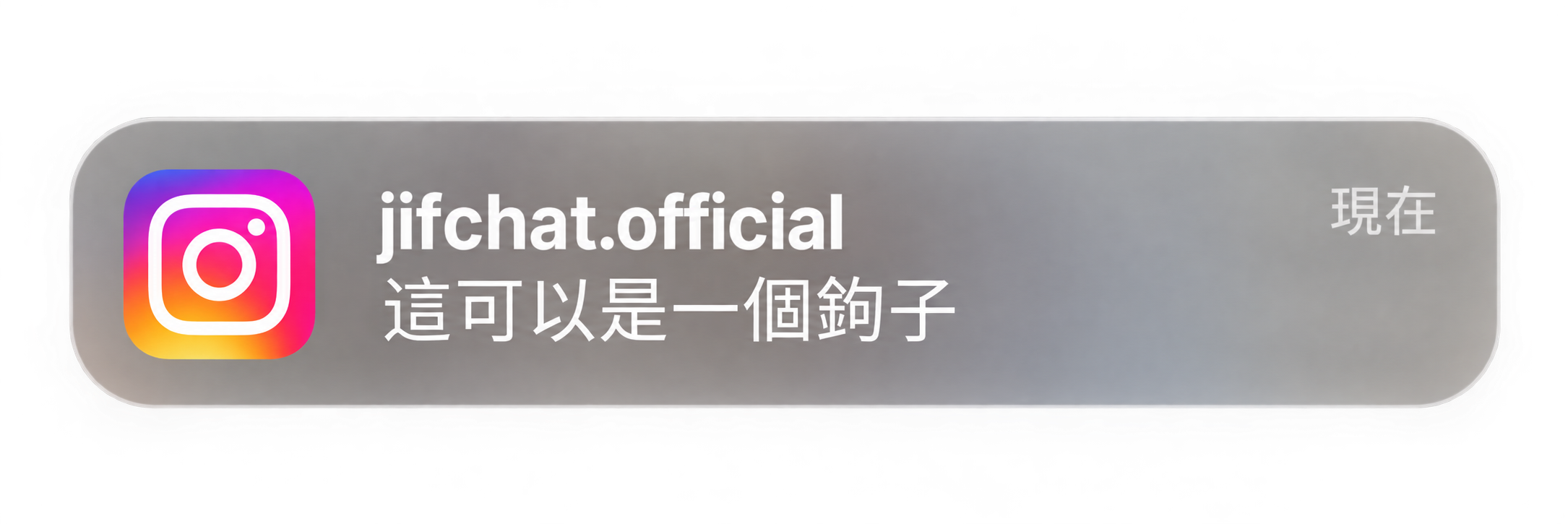
Account:
jifchat.official
Message:
This could be a hook
Top right:
now
Ideally, remove the background from each UI screenshot so only the UI itself remains.
This matters most for the Comment Card and Question Sticker. Use transparent PNGs — otherwise the video model may treat the screenshot background as part of the UI.
Effect 1: Burn the "hook" away 🔥
In Canvas, add:
Image 1: Room
Image 2: Character
Image 3: UI screenshot #3
Click "+" on the left to add a video generation node and choose the Seedance 2.5 model.
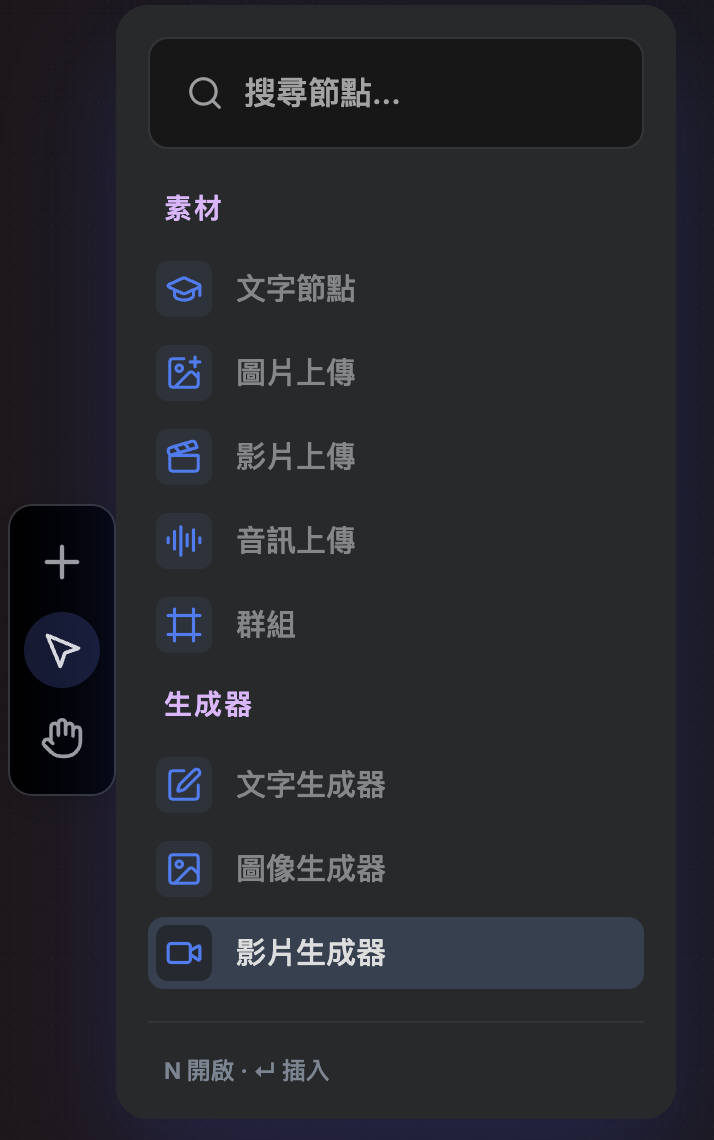
Upload the images you just prepared in order and connect them to the video generation node.
Create a roughly 4-second, 9:16, photorealistic short shot as a single continuous take.
<<<image_1>>> controls the bedroom environment. Keep 100% the same bed, headboard, bedding, blank wall, wall lamps, furniture placement and overall lighting.
<<<image_2>>> controls the female lead's full identity, face, hairstyle, body shape, outfit and accessories. Keep them exactly consistent throughout — no face swaps, outfit changes or hairstyle changes.
<<<image_3>>> controls the Social Media Question Card. Keep 100% of the UI's shape, logo, layout, colors and text.
As the scene opens, the woman is already sitting cross-legged in the center of the bed, facing the camera. The Question Card hangs still on the blank wall about 20–25 cm above her head.
The Question Card must read as a real, thin, matte, flammable sheet of paper — not a digital hologram. Flat matte paper, opaque, non-emissive, no glow, no halo, no bloom.
Her right hand is already raised, holding an ordinary black lighter, the flame touching the bottom center of the Question Card. She tilts her head up slightly to watch the flame, calm and a little dismissive.
She lowers the lighter. The flame slowly creeps up from the bottom of the card. The burn line is a natural orange-yellow; the paper edges brown, blacken and curl.
The flame burns through the reply area at the bottom, then into the main text. Only the parts the flame actually touches may disappear. Burnt sections turn into dark grey flakes that drift naturally downward.
The flame finally reaches the logo at the top and the entire Question Card burns away, leaving only a few ashes and a faint wisp of grey smoke.
She looks back at the camera, tilts her head slightly and gives a small, satisfied smile.
Locked frontal shot, subject centered, normal human-eye perspective, about 47° field of view. No zoom, no pan, no tilt, no camera movement.
The paper must burn like real thin paper. Before burning, the UI must not move, shrink, fade out or dissolve on its own. Only areas the burn line passes through may disappear. Ash falls naturally under gravity.
Follow the room lighting of <<<image_1>>> exactly. The flame may only cast a very subtle local warm glow; the room must not suddenly darken or turn orange.
Only room ambience, a lighter click, paper burning crackle and a soft exhale at the end.
No dialogue, no music, no subtitles.
one woman only.
Character 100% <<<image_2>>>.
UI 100% <<<image_3>>>.
No hologram.
No magical dissolve.
No glowing UI.
No duplicated card.
No extra person.
No extra hands.
No flickering.
Effect 2: Crumple the comment and toss it 🗑️
Swap the third reference for the Comment Card screenshot.
Create a roughly 4-second, 9:16, photorealistic short shot as a single continuous take.
<<<image_1>>> controls the bedroom environment. Keep 100% the same bed, wall, furniture and lighting.
<<<image_2>>> controls the female lead's full identity, face, hairstyle, body shape, outfit and accessories, kept exactly consistent throughout.
<<<image_3>>> controls the Social Media Comment Card. Keep 100% of the logo, text, account name, layout, proportions and colors.
The woman sits cross-legged in the center of the bed. The Comment Card hangs still on the blank wall about 25 cm above her head.
The Comment Card is a real, thin sheet of matte paper. Flat matte printed paper, opaque, non-emissive, no glow, no hologram.
She is already looking up at the Comment Card. She reads it and blinks slowly once, looking a little annoyed. Both hands rest on her knees.
She reaches up with both hands at once — left hand grabs the left edge of the card, right hand the right edge.
Her fingers must physically touch the paper.
Once she grabs it, the whole Comment Card moves down with her hands. No second card may remain on the wall.
She pulls the card down to chest height and crumples it with both hands into an irregular paper ball.
The paper must genuinely bend, fold, wrinkle and compress.
The logo and text may distort as the paper folds, but must never suddenly turn into different text.
Her left hand lets go of the ball and returns to her knee.
Her right hand casually tosses the ball out to the right of the frame.
The ball flies out of frame along a short, natural arc.
She looks back at the camera, tilts her head slightly and gives a small, satisfied smile.
Locked frontal shot, subject centered, normal lens perspective. No zoom, no camera movement.
The card stays completely still until touched. Once grabbed, it must bend like real thin paper.
It must not pass through her palms.
It must not vanish on its own.
It must not dissolve.
No second card left on the wall.
The paper ball keeps realistic creases and weight, and follows natural gravity and a parabolic arc when thrown.
When she raises her hands and throws, her hair shows very subtle secondary motion; the mattress compresses naturally as she moves.
Quiet room ambience, a real paper crumple, a very light whoosh on the throw, and a short exhale at the end.
No dialogue, no music, no subtitles.
one woman only.
Character 100% <<<image_2>>>.
Comment Card 100% <<<image_3>>>.
Both hands grab the card.
Only the right hand throws the paper ball.
No hologram.
No magical disappearance.
No duplicate UI.
No extra hands.
No flickering.
Effect 3: Wipe the notification away 💦
The third effect uses the Notification UI, and this time the material is different.
The first two are paper; this one should behave like a translucent glass UI, similar to an iOS notification.
Create a roughly 4-second, 9:16, photorealistic short shot as a single continuous take.
<<<image_1>>> controls the bedroom environment. Keep 100% the same room, bed, wall, furniture and lighting.
<<<image_2>>> controls the female lead's full identity, face, hairstyle, body shape, outfit and accessories, kept exactly consistent throughout.
<<<image_3>>> controls the Jif Notification UI. Keep 100% of the logo, account name, text, proportions, layout and colors.
The woman sits cross-legged in the center of the bed.
The Jif Notification hangs still on the blank wall about 20–25 cm above her head.
The UI is a flat, translucent, iOS-style frosted glass notification. Smoky-grey translucent glass, flat, no 3D thickness, no glow, no halo, no bloom.
She holds a clear spray bottle in her right hand and a light grey microfiber cloth in her left.
She looks up at the notification and blinks slowly once, slightly annoyed.
She raises the spray bottle in her right hand and aims it at the notification.
She presses the nozzle exactly twice.
Two short, fine bursts of mist hit the notification surface.
Droplets bead up on the translucent glass, and some slowly run downward.
The notification itself must not move at all.
She lowers the spray bottle to her thigh.
She raises the microfiber cloth in her left hand and makes real contact with the notification surface.
First wipe.
Her left hand drags the cloth from left to right across the top half of the notification.
Only areas the cloth actually passes over may disappear.
The account name and part of the UI on the top half are wiped away, revealing the original clean bedroom wall behind.
Second wipe.
She wipes the cloth from right to left across the bottom half.
The rest of the notification and its text are wiped completely clean.
The UI must come off along the cloth edge like print on wet glass — not suddenly fade out.
The wall above her head is back to its original, completely clean state.
She lowers the cloth, looks back at the camera, tilts her head slightly and gives a small, satisfied smile.
Locked frontal shot, subject centered, normal human-eye perspective. No zoom, no pan, no tilt, no movement.
The mist must be real, fine droplets.
Droplets bead on contact with the UI and a few run downward.
The cloth must genuinely press against the UI surface, with natural friction and pressure visible in her wrist and fingers.
The notification may only disappear where the cloth wipes over it.
It must not dissolve on its own.
It must not fade out.
It must not vanish all at once.
It must not reappear.
Quiet room ambience.
Two short spray bottle "pssht" sounds.
Two soft wet-glass wiping sounds.
A very light exhale at the end.
No dialogue, no music, no subtitles.
one woman only.
Character 100% <<<image_2>>>.
Notification 100% <<<image_3>>>.
Right hand = spray bottle.
Left hand = microfiber cloth.
exactly two sprays.
exactly two wipes.
No glowing UI.
No hologram.
No magical dissolve.
No duplicate UI.
No extra hands.
No flickering.
Once all three are generated, cut them into one Reel
When you're done, line up the three effects back to back
- 1Burn
- 2Crumple
- 3Wipe
4 final generation tips
1|Don't let the UI glow
For paper-style UI, always add this to the prompt:
matte, opaque, non-emissive, no glow, no halo, no bloom
Otherwise it easily turns into a sci-fi hologram.
2|Start the story on the first frame
Add:
The first visible frame already contains the character and the UI. No empty establishing shot.
Don't let the model waste the first second filming an empty room.
3|Lock the camera
Use this for all three:
Locked-off static frontal camera.
No zoom, no pan, no tilt, no camera movement.
Your character and room will stay much more stable.
4|If the text comes out wrong, don't keep regenerating
If the UI text warps during the motion, keep the take with the best movement and overlay the correct UI or text in post. That's usually far more efficient than regenerating over and over.
The full workflow
Open JifChat Canvas
→ Add the bedroom reference
→ Add the character reference
→ Add the social media UI screenshot
→ Connect everything to the video generator
→ Paste in the prompt
→ Generate three 4-second effects
→ Cut them into a full Reel
You don't need to rebuild the character and room for every scene.
Same references, a new UI and a new action — and you've got a whole series.
That's what makes (https://chat.jif.dev/canvas) so convenient: references, prompts and video generation all live on one canvas, so when you want to try other hooks like "tear it up", "stomp on it" or "suck it into the trash", you can reuse the same character and scene.